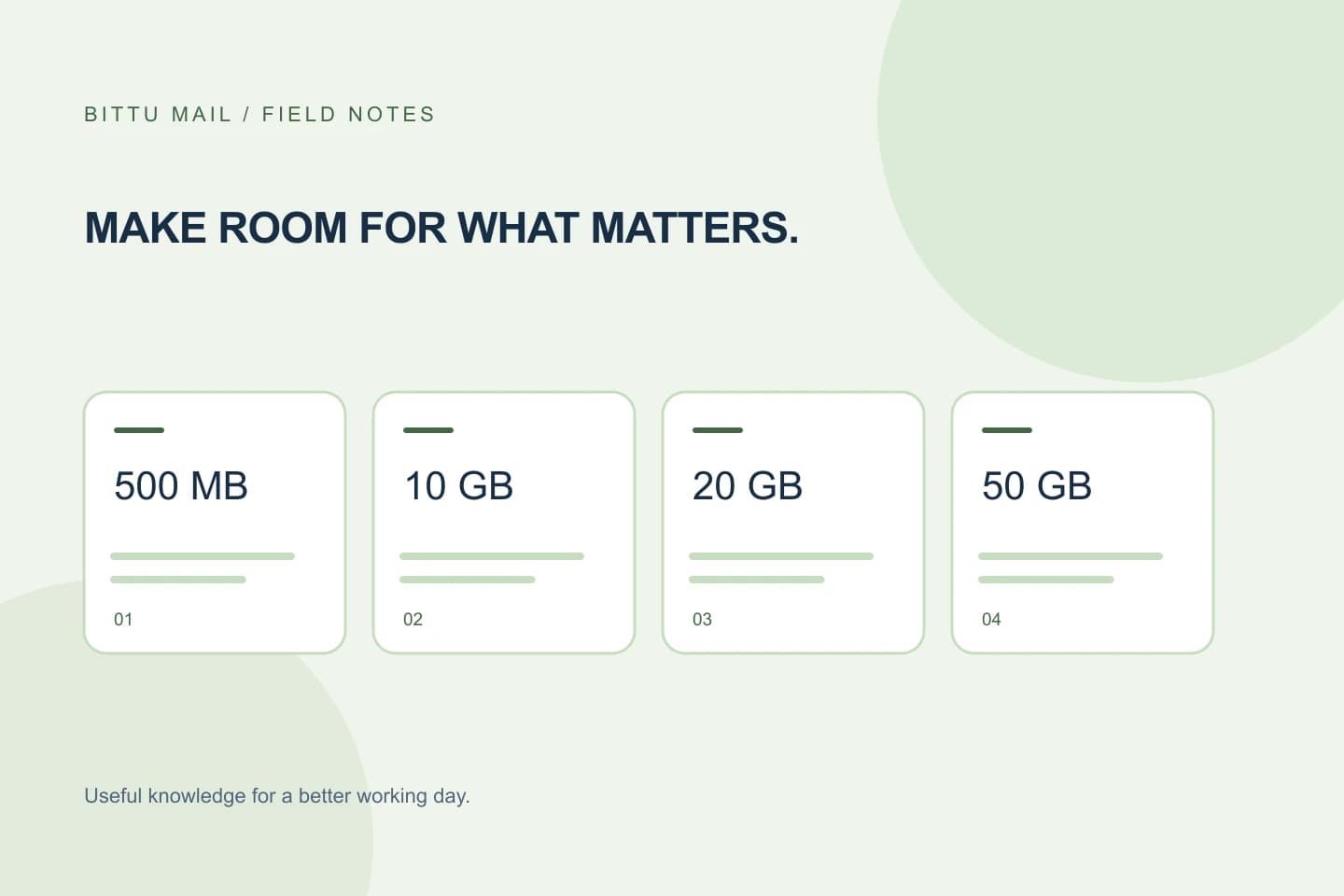
A 500 MB mailbox can feel roomy if you mostly send short messages, or tight if you regularly keep large attachments. The number alone does not tell you how long your mailbox will last: your existing mail, the size of files people send you, and how long you keep messages all matter. Before choosing a free personal BITTU Mail mailbox, take a quick look at your current habits and usage. That gives you a more useful answer than guessing from the number of messages in your inbox.
The useful bits
- Attachment size and keeping habits matter more than message count alone.
- Check for a current usage display; do not assume it exists in a particular place.
- Review large or unnecessary mail, then confirm whether the displayed usage changes.
What the 500 MB figure tells you
Free personal @bittumail.tech mailboxes start with 500 MB of storage. Think of that as a limit on mailbox storage, not as a promise about how many messages you can keep. Messages with small text bodies generally take less space than messages carrying large files, but the exact space used by any particular message depends on its contents.
A mailbox full of brief conversations and occasional small attachments is a different case from one used to exchange presentations, photos, or many other sizable files. Keeping sent mail and older conversations also contributes to the collection you need to manage. The supplied product information does not specify exactly how storage is calculated or how quickly usage figures update, so use any displayed usage as your guide rather than estimating a precise message count.
Compare the limit with your routine
Start with a simple question: what kinds of messages do you receive most often, and do you keep their attachments? If you mainly send and receive short personal notes, with files shared elsewhere when convenient, a 500 MB mailbox may suit your pattern. If email is also your archive for large files or you routinely retain attachment-heavy threads, plan to check storage more often and decide what you are willing to remove or keep outside the mailbox.
For example, someone who exchanges a few short family updates and deletes obsolete file copies has a different storage pattern from someone who keeps every photo and document in email. These are examples of habits, not guarantees about how long 500 MB will last. Your own mailbox’s displayed usage, if available, is the better starting point.
Take a snapshot before relying on it
If you are considering a new mailbox, review the account you use now before changing where important mail goes. Look for a storage or usage indicator in your current email service, if it provides one. If the service gives no clear figure, inspect a sample of recent and older mail and note whether large attachments are common. You do not need to count every message to learn whether your routine is attachment-heavy.
For an existing BITTU Mail account, check whether the account shows mailbox usage. Do not assume a particular menu or control is available: account options can depend on role, plan, and provisioning. If you cannot find a usage figure, the public product information does not specify an alternative measurement method. You can still review your mail habits, but avoid treating a rough visual estimate as a confirmed storage total.
A short review you can repeat
Use a small, consistent review rather than trying to clean everything at once. Start with messages you recognize as no longer useful, especially threads that contain files you have already saved elsewhere. Check both received and sent mail, since a sent message may include an attachment you chose to keep. Before removing anything, make sure you do not need the message or file; do not delete important records just to make a usage number smaller.
- Check for a displayed mailbox-usage figure, if one is available.
- Review recent and older mail for attachment-heavy threads.
- Keep files you still need somewhere appropriate before removing their email copies.
- After changes, check the usage display again if available; allow for the possibility that it may not update immediately.
Confirm the result—and know the limit
A review is useful only if you can tell what changed. Compare the usage figure before and after your cleanup if the account displays one. If it has not changed, that does not by itself prove the cleanup failed; the product information does not state how quickly usage updates or how each folder affects the total. Recheck later, or avoid making decisions based on a change you cannot verify.
Also consider what happens after your review. If large attachments are a regular part of your email, removing old messages may only postpone another review. A mailbox is easier to manage when you have a simple habit: keep what you need, avoid retaining unnecessary file copies in email, and check usage before it becomes urgent.
A decision example
Suppose you are moving personal mail and find that your current inbox contains mostly short conversations, with only a handful of large files you still need. That pattern may be compatible with starting at 500 MB, provided you keep an eye on usage. If your mail instead serves as a long-term store for many large attachments, the starting limit may require more frequent review. This is a planning comparison, not a guarantee that a particular mailbox will fit.
The practical test is straightforward: inspect the current usage figure if your service offers one, identify your attachment habits, and decide how often you are willing to review and remove mail you no longer need. If you cannot confirm current usage, treat your estimate cautiously rather than assuming the mailbox has ample space.
About this guide
Prepared with AI assistance for the BITTU Mail editorial library. Check important details against your original messages and current account settings. Product access depends on your role, plan and provisioning state. Provider interfaces and requirements can change.
View current plans · Security information · Suggest a correction