A checkout confirmation and the plan shown in your account answer related but different questions: one records what was selected or submitted at checkout, while the other shows the plan currently associated with your account. If the details do not match, do not assume that a payment, trial, or plan change was completed. Compare the records in a consistent order, note exactly what differs, then use authenticated account actions to resolve it. This guide explains what to check and how to confirm the account reflects the intended plan.
The useful bits
- Compare the mailbox, plan, storage, term and status—not just the plan name.
- Check live totals and renewal details at pricing or authenticated checkout.
- Use account actions after signing in; verify the resulting plan information.
Gather the two records before comparing
Open the checkout confirmation or other checkout record you saved, and sign in to the account through https://mail.bittuicloud.com. Keep both records available, but avoid sharing passwords, one-time codes, or full payment details. A record can help you recall what you selected; it does not by itself establish what plan is active now.
Make sure you are comparing the same mailbox or business workspace. If you have more than one mailbox or administer a workspace, note the relevant address or domain privately. A mailbox alias is not automatically a separate mailbox or login, so do not treat an alias as proof that a separate mailbox plan was purchased.
Compare the details in a fixed order
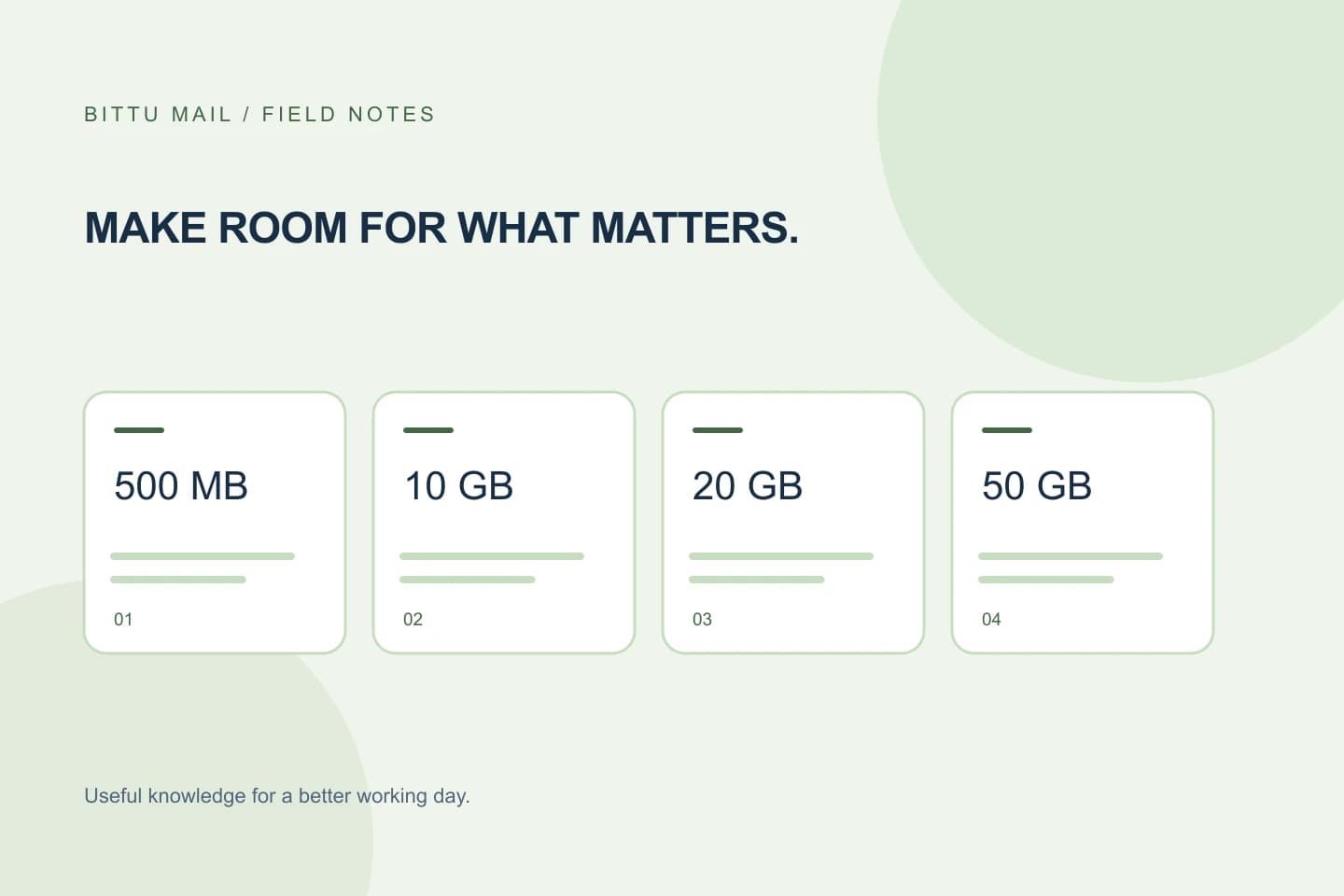
Start with the plan name, then compare the mailbox or workspace it applies to. Check the storage allowance and, for a business plan, whether you are comparing storage per mailbox rather than assuming a combined workspace total. Business Starter, Standard and Premium have 10, 20 and 50 GB per mailbox respectively. Free personal @bittumail.tech mailboxes start with 500 MB.
Next compare the term and the checkout record’s displayed total, including any taxes shown. Prices, upfront term totals, taxes, availability and renewal terms can change or depend on the offer. Check current details at /pricing or in authenticated checkout rather than relying on an old receipt, saved screenshot, or remembered amount.
Separate selection, payment and current status
A checkout record may show an intended selection or a completed transaction, while the account shows the plan currently provisioned. Compare any status information the records actually provide. Do not infer that a plan is active merely because you reached checkout, or that a one-time checkout creates an automatic charge or payment mandate.
If your record concerns a Starter trial, remember that the 30-day trial is limited to one claim per eligible domain. Availability and eligibility are checked by the server. A saved record or previous eligibility indication is not a guarantee that a claim is available now.
Make a compact comparison note
Before taking action, write down only the useful differences: the account or mailbox involved, the checkout plan and term, the current plan and storage shown, and the point of disagreement. Keep the note factual. For example, “checkout record says Standard; account currently shows Starter” is more useful than guessing that a payment failed.
Do not put passwords, OTPs, or unnecessary financial information into a note or message. If you need to share a reference, use only the information requested through the authenticated account process.
Checkout record: [plan and term shown]
Account: [mailbox or workspace identifier]
Current plan and storage: [details shown]
Difference: [specific mismatch]
Next step: review current details in authenticated checkout
Resolve a mismatch through authenticated account actions
If the account does not show the plan you intended, sign in at https://mail.bittuicloud.com and use the account actions available to you. What you can see or change depends on your role, plan and provisioning state; do not assume every account has identical controls. For a business workspace, an authorised administrator may need to review the relevant mailbox or plan details.
If the available account action does not explain the difference, use the authenticated route to request clarification and describe the mismatch precisely. Do not rely on an email address, message, or page that asks you to disclose a password or OTP. If the discrepancy concerns the amount or terms, consult the current pricing or authenticated checkout information as well.
Confirm the outcome instead of guessing
After taking an account action, return to the account view and check whether the plan and storage now match the intended selection. Compare the mailbox or workspace, not just the plan label. If the change is not reflected, or the account still shows conflicting information, record what the account displays and continue through authenticated account actions rather than repeating checkout blindly.
A useful final check is that the account’s current plan, applicable storage and relevant term information agree with the details you intended to accept. Keep the checkout record for reference, but treat the account’s current authenticated information as the place to verify the plan now associated with the account.
- Same mailbox or workspace?
- Plan and per-mailbox storage agree?
- Term and current checkout details reviewed?
- Account view reflects the intended result?
About this guide
Prepared with AI assistance for the BITTU Mail editorial library. Check important details against your original messages and current account settings. Product access depends on your role, plan and provisioning state. Provider interfaces and requirements can change.
View current plans · Security information · Suggest a correction