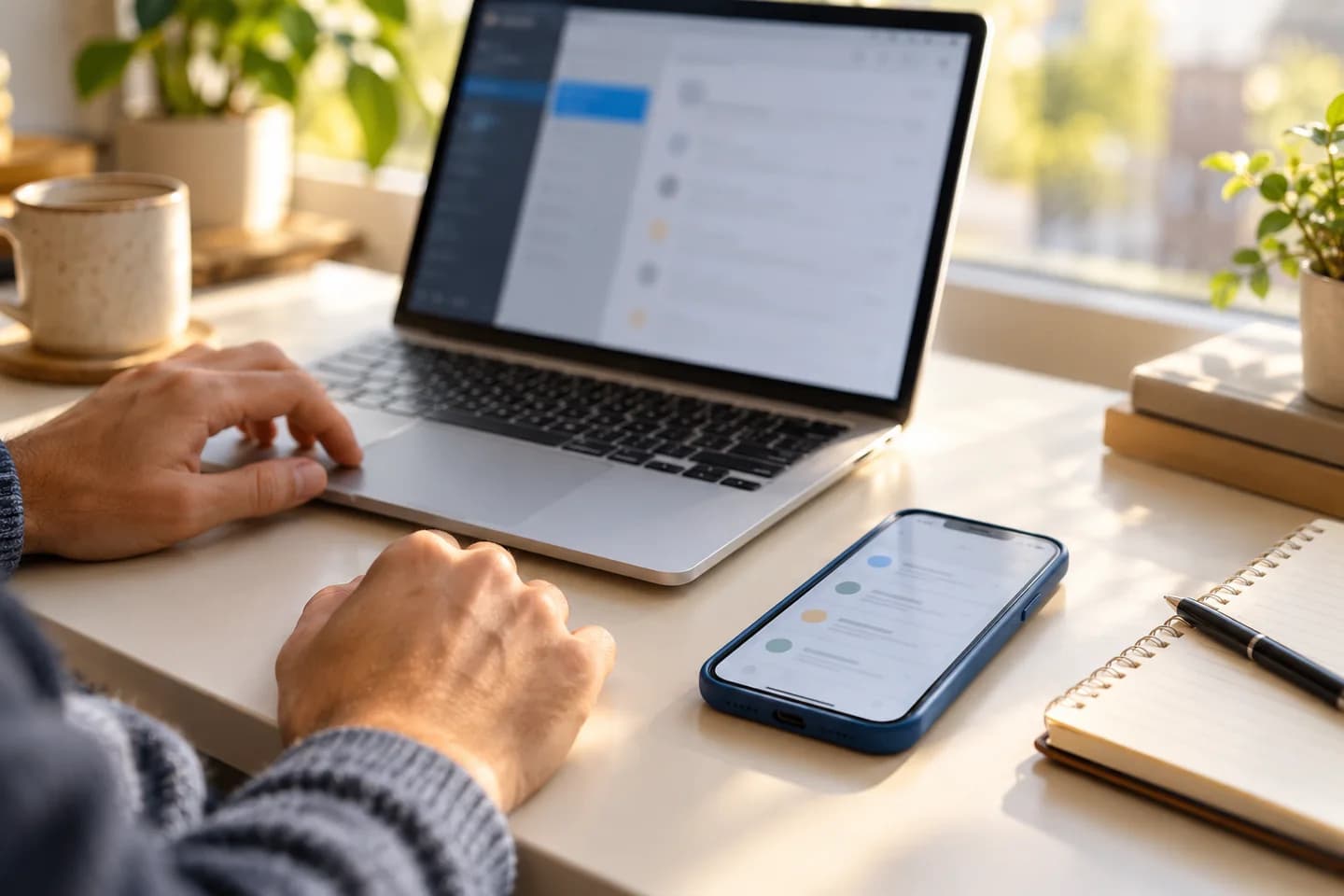
An email can arrive intact and still look noticeably different on a phone, in a browser, and in a desktop mail app. A heading may shrink, blank lines may disappear, or an image may be missing. That does not automatically mean the sender changed the message or that it was damaged in transit. Apps interpret and display message content in different ways. A careful comparison starts by keeping the received message unchanged, then checking the device, display settings, and content type that could explain the difference.
The useful bits
- Compare the same received message, not separate forwards or copies.
- Check text mode, display settings, and whether images or other content are external.
- Keep the original untouched and record what changed between views.
One message can contain more than one view
Many formatted emails carry both a plain-text version and an HTML version. The mail app chooses how to display the available content, and its handling of HTML, fonts, spacing, and line breaks may differ from another app’s. A sender’s layout can also rely on formatting choices that are interpreted differently across devices. As a result, the same received message may have different paragraph spacing or line wrapping without having different words.
First confirm that you are comparing the same message in the same mailbox, rather than a reply, forwarded copy, or separately delivered version. Look at the sender, subject, and surrounding conversation, and note any visible differences in the message text.
Separate layout changes from missing content
A narrow screen can wrap lines that appear unbroken on a wider screen. Font size, zoom, accessibility settings, and light or dark display modes can also affect how the same content looks. These changes are not necessarily changes to the message itself.
Images and other embedded or linked content need separate attention. An image may be loaded from elsewhere rather than included directly in the message, and an app may not display it in the current view. Check whether the app indicates that images are hidden or not loaded. Do not treat an absent image as proof that the sender omitted it; compare the message’s text and any relevant attachment separately.
Make a controlled comparison
Open the received message in each app without editing it. If practical, compare on the same device and screen size first, then compare devices. Keep display zoom and text-size settings consistent where you can. Record a specific difference, such as “the second paragraph has no blank line,” rather than relying on an overall impression.
If one app offers a view of the original message or its source, you can inspect that as an additional reference. Availability and wording vary by app. Do not change the source, copy it into an editor and save over it, or assume that a source view is easy to interpret. The rendered view is useful for reading; the original received message is the reference to preserve.
Use a small comparison checklist
For a practical check, choose one message that looks different and compare the same received copy in the two apps. Avoid forwarding it to yourself as the main test: a forward can add headers, quote formatting, or other changes that make the comparison less direct.
- Confirm sender, subject, and message text match.
- Compare on the same screen size, with similar zoom and text-size settings.
- Note whether the difference is spacing, font, line wrapping, or missing content.
- Check whether images or other external content are hidden or still loading.
- Leave the original message unchanged while you investigate.
Fictional example: In one app, a message to [reader@example.com] shows a blank line before the sign-off. In another, the paragraphs run together. The sender and wording match. Compare both views at the same text size, then check whether the difference remains. If only the spacing changes, record that distinction; do not rewrite or replace the received message.
Keep a reliable reference copy
Before troubleshooting, avoid deleting, moving, or editing the message. If your mail app provides a way to save or export the received message, use that option only if you understand where the copy will be stored and can keep it separate from the original. Not every app offers the same controls. A screenshot can document a display difference, but it does not preserve all of the message’s underlying content.
If you need help from an administrator or support contact, describe the device and app, the specific visual difference, and whether any image or attachment is affected. Share only information appropriate for that recipient; a screenshot may expose names, addresses, or message content.
Decide whether the difference matters
A change in wrapping or paragraph spacing may be cosmetic. A missing attachment, absent text, or an image that carries important instructions deserves a closer check. Compare the message in another available view and inspect attachments as attachments, rather than assuming they are part of the formatted body. If you use BITTU Mail, its mail service is powered by BITTU ICLOUD; the appearance may still depend on the app and device displaying the message.
You can confirm a comparison is useful when the same message identity and wording are present, the display conditions are noted, and the remaining difference is clearly described. If the content itself appears incomplete or contradictory, preserve the original and ask the sender to clarify through a separate message rather than altering the received copy.
About this guide
Prepared with AI assistance for the BITTU Mail editorial library. Check important details against your original messages and current account settings. Product access depends on your role, plan and provisioning state. Provider interfaces and requirements can change.
View current plans · Security information · Suggest a correction