A mailbox nearing its storage limit can make ordinary email harder to manage, but deleting messages in a rush may remove records or attachments you still need. Start by finding the largest, least useful items, then make decisions based on what each message is for. Confirm that any changes actually freed space before turning to plan options. The review below works whether your mailbox offers convenient search or storage controls or requires you to inspect messages manually; available controls can vary by account and plan.
The useful bits
- Find bulky messages and attachments before deleting anything.
- Keep records you may need; move or save them only where you can access them later.
- Check the mailbox after cleanup, then compare current plan details if more room is needed.
Check the situation before changing anything
If your mailbox displays a storage warning or usage amount, note what it says and when you checked. If it does not show a clear figure, avoid guessing how much space a particular message occupies. Look for any account-provided storage information, but do not assume every account has the same controls or layout.
Before deleting, identify messages that must remain available: for example, invoices, work approvals, travel confirmations, or correspondence you are actively handling. If you need to keep an item outside the mailbox, use a location you control and can reliably access. Do not treat an unverified download or an untested backup as a safe copy.
Look for the biggest candidates first
Attachments often make a message a more useful review target than a short text-only note. Search for messages with attachments if your mail interface supports that search, or inspect likely groups such as shared files, repeated reports, and old event photographs. Search and folder controls may be available, but their exact options depend on the account.
Review the message as well as the file. A document may be an outdated duplicate, while the email around it records who sent it, why it matters, or what was agreed. If you decide to remove a message, consider whether that context is important too. Do not assume deleting an attachment separately is possible unless your account actually offers that option.
Make a keep, save, or delete decision
Use a simple test for each candidate: Is it still needed for current work, a future reference, or a record you are expected to retain? If yes, keep it in the mailbox or make a verified copy in an appropriate place before removing it. If it is a duplicate or no longer useful, deletion may be reasonable. When uncertain, pause rather than treating age alone as proof that a message is disposable.
Be especially deliberate with shared or business mailboxes. Check with the people responsible for the work before removing messages that may affect colleagues or ongoing processes. An administrator may manage mailbox settings or quotas, but permissions and available actions depend on role, plan, and provisioning; do not assume you can change another person’s mailbox.
A mailbox is close to its limit. You find an old project email with a large presentation attached. First check whether the project is complete and whether the message documents an approval. If the presentation is still needed, save a verified copy somewhere authorized and retain the email if its context matters. If both are obsolete and no one needs the record, remove the message using the controls available in your account.
Work through a small, deliberate batch
Rather than deleting everything that looks old, review a manageable group of candidates and record what you chose to keep or remove. If the interface has a selection or search feature, confirm the messages selected before applying an action. Recheck the sender, subject, date, and attachment before deletion; similar-looking threads can have different purposes.
Afterward, check the mailbox’s available storage information again, if shown. A change may not be visible immediately, and deleted mail may remain in a deleted-items area until it is permanently removed. Do not permanently clear that area unless you have checked its contents and understand what the account’s controls will remove. If the displayed space has not changed, verify what was deleted and whether the account reports storage in a different place.
- Keep: useful records, active work, or messages whose context matters.
- Save first: files you will need later, using a location you can access and trust.
- Delete: confirmed duplicates or items with no remaining purpose.
- Confirm: review the mailbox’s reported usage again, where available.
Consider whether a plan change fits
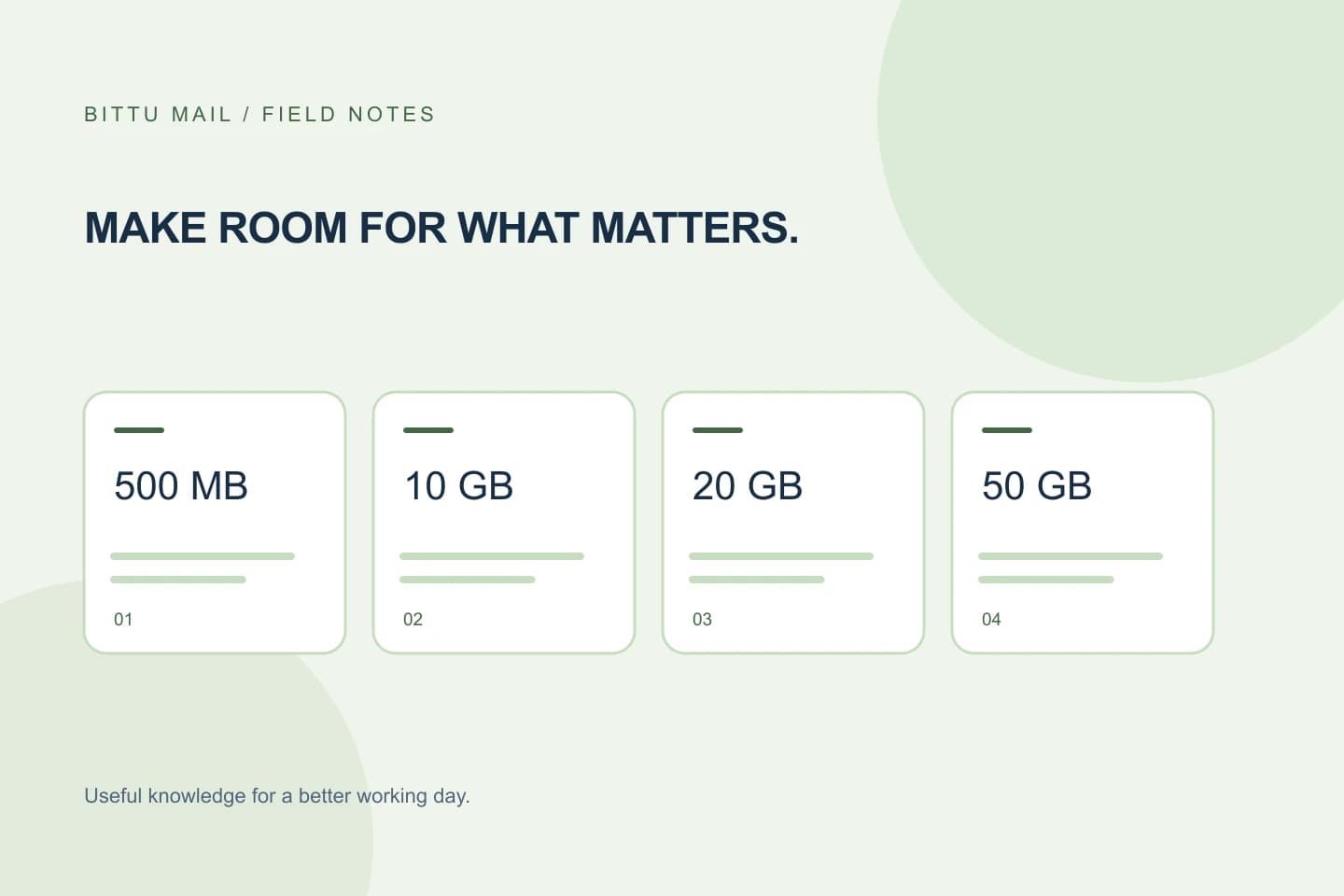
If careful cleanup is not enough, compare the storage included with available plans rather than assuming a particular upgrade will suit your account. BITTU Mail is powered by BITTU ICLOUD. Free personal @bittumail.tech mailboxes start with 500 MB; Business Starter, Standard, and Premium include 10, 20, and 50 GB per mailbox respectively. Business options are per mailbox, so check how many mailboxes your workspace needs.
Current prices, upfront term totals, taxes, availability, and renewal terms can change and must be checked at /pricing or in authenticated checkout. A 30-day Starter trial is limited to one trial claim per eligible domain, with eligibility and availability checked by the server. Do not assume a trial is available or that checkout creates an automatic charge or mandate; review the terms shown for the transaction you choose.
Finish with a clear confirmation
After cleanup or a plan decision, confirm the result using the mailbox’s available storage information or account details. If you cannot see whether the change took effect, or your account does not provide a clear usage figure, avoid repeating large deletions just to force a visible change. Use the account’s official support or account channels for help. Sign-in, registration, recovery, and account actions go through https://mail.bittuicloud.com.
Keep the outcome practical: note which categories you reviewed, what you retained, and whether the mailbox now has room for expected work. A short repeat review when storage warnings return is safer than a rushed purge, especially when messages serve as records for other people.
About this guide
Prepared with AI assistance for the BITTU Mail editorial library. Check important details against your original messages and current account settings. Product access depends on your role, plan and provisioning state. Provider interfaces and requirements can change.
View current plans · Security information · Suggest a correction